Updating an image
How to upload a new image for an existing paper, including original files, device-ready files, and optional editor metadata.
Use this endpoint when a paper already exists and you want to replace its image.
This guide focuses on the practical upload flow for POST /papers/uploadSingleImage/{paperId}. For the generated endpoint reference, see API Reference: Upload single image.
For an Open Integration that receives external events, see Webhooks & content push. That flow sends text or images to a saved integration paper, uses its render page for layout, and reports delivery status through authenticated callbacks.
Getting the parameters right
You need a paperID, which is best obtained by the web application when viewing the details of an existing paper.
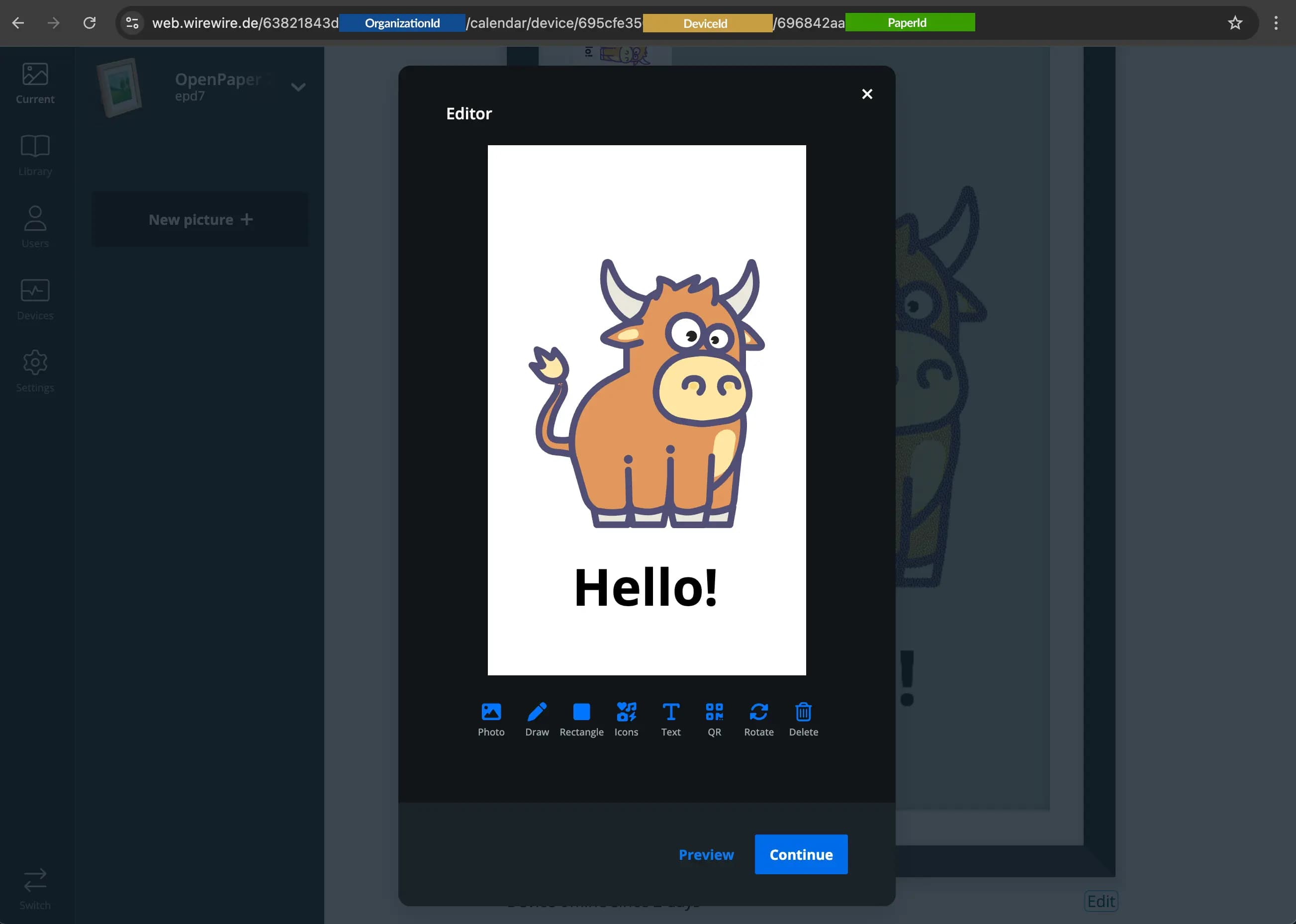
Make sure to use the correct part of the URL as the paper ID.
What this endpoint does
The upload endpoint attaches one or more image-related payloads to an existing paper:
Send the request as multipart/form-data.
Authentication
Use the API key flow described in Authentication and send your key in the x-api-key header:
x-api-key: <your-api-key>
Request fields
At minimum, send picture.
picture: Source image file.pictureDevice: Optional processed image file that is already prepared for the target device.pictureEditable: Optional JSON string with editor data.settings: Optional JSON string merged intopaper.metabefore the image is processed.
How the upload behaves
Upload only the source image
If you send only picture, the backend treats it as the source image, prepares it for the device, and updates the paper image.
Preferred flow
Use this flow when your application does not perform its own image processing.
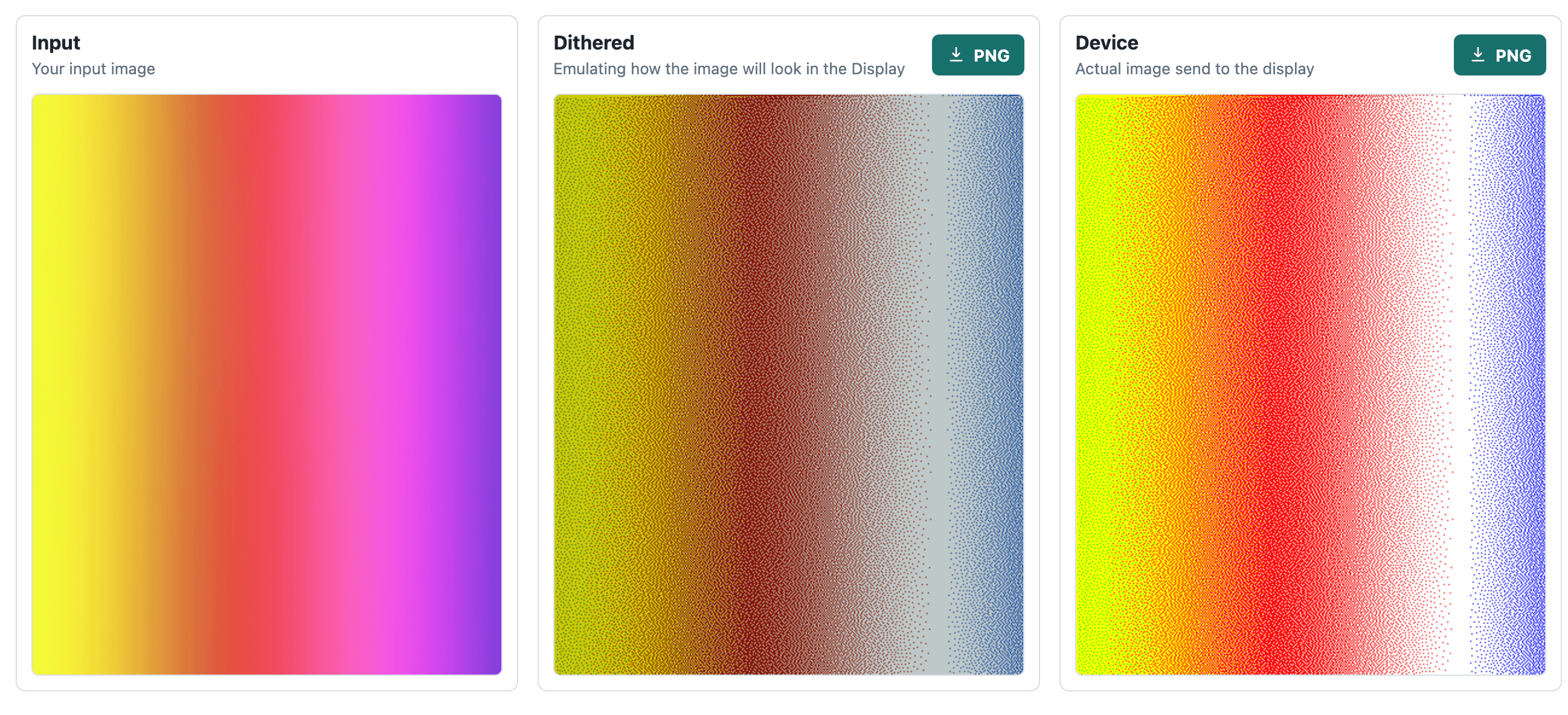
Upload the source image and a device-ready image
If you send both picture and pictureDevice:
pictureDeviceis used as the final image sent to the device.pictureis kept as the original reference image for the app and later edits.
Advanced flow
Use this flow when your application already performs its own resizing, conversion, or dithering.
Update paper settings during the upload
If you send settings, the backend merges those values into paper.meta before handling the image. That lets values such as lut or orientation affect the upload immediately.
Example: simple upload
curl -X POST "https://api.paperlesspaper.de/v1/papers/uploadSingleImage/<paper-id>" \
  -H "x-api-key: <your-api-key>" \
  -F "picture=@/path/to/image.png"
This flow typically:
- uploads the image,
- prepares it for the device, and
- updates the paper's image timestamp.
Example: upload with a device-ready image
curl -X POST "https://api.paperlesspaper.de/v1/papers/uploadSingleImage/<paper-id>" \
  -H "x-api-key: <your-api-key>" \
  -F "picture=@/path/to/original.png" \
  -F "pictureDevice=@/path/to/device-ready.png"
Example: upload with settings
curl -X POST "https://api.paperlesspaper.de/v1/papers/uploadSingleImage/<paper-id>" \
  -H "x-api-key: <your-api-key>" \
  -F "picture=@/path/to/image.png" \
  -F 'settings={"lut":"default","orientation":"portrait"}'
This behaves like a metadata update followed by the image upload in one request.
Frontend example
const formData = new FormData();

formData.append("picture", originalFile);

if (deviceReadyFile) {
  formData.append("pictureDevice", deviceReadyFile);
}

if (editableJson) {
  formData.append("pictureEditable", JSON.stringify(editableJson));
}

if (settings) {
  formData.append("settings", JSON.stringify(settings));
}

await uploadSingleImage({
  id: paperId,
  body: formData,
  deviceId,
});
Common mistakes
- Sending JSON instead of
multipart/form-data. - Setting the
Content-Typeheader manually when usingFormData. - Forgetting to
JSON.stringify(...)in thesettingspayloads.